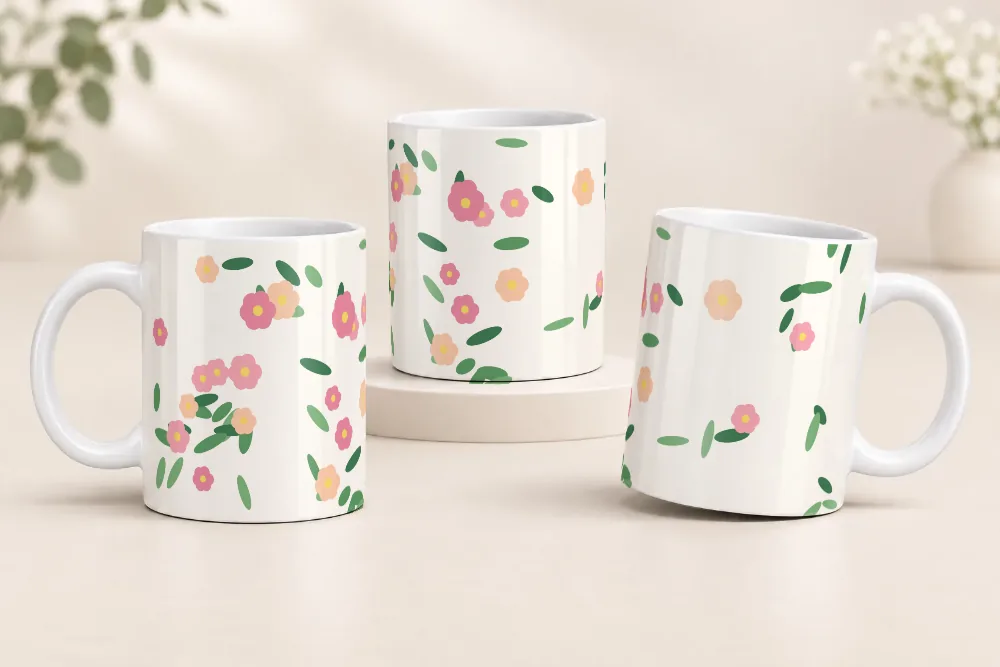

How to make a free mug mockup: a guide to selling more
· 5 min read
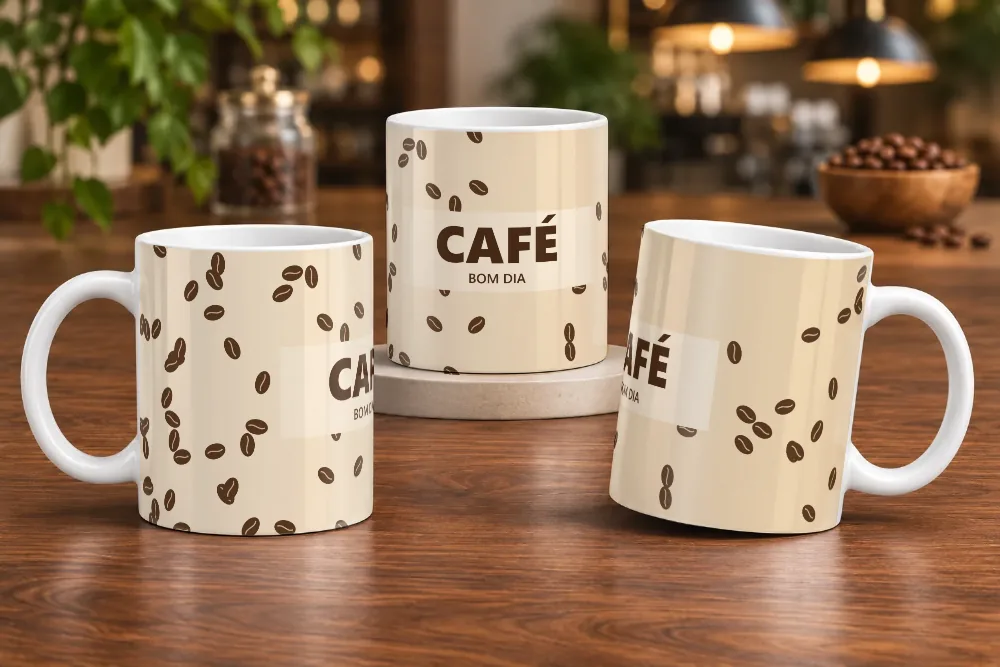
Anyone who sells sublimated mugs knows the problem: photographing every design on every mug model takes time. With a mug mockup, you show exactly how the personalized product will look without producing one mug for each design.
In this guide you'll see what makes a mockup sell: a well-prepared design, the right scene and a few checks before you publish. Everything is free, right in your browser, with no software to install and no Photoshop needed.
What is a mug mockup?
It's a visual simulation of a mug with your design applied to it. The image combines your digital artwork with a photo of the product, keeping its perspective, highlights and shadows.
You can use mockups to show designs to customers, create ads, build catalogs and promote new collections.
Start with the right design
Before you begin, check the size of your image.
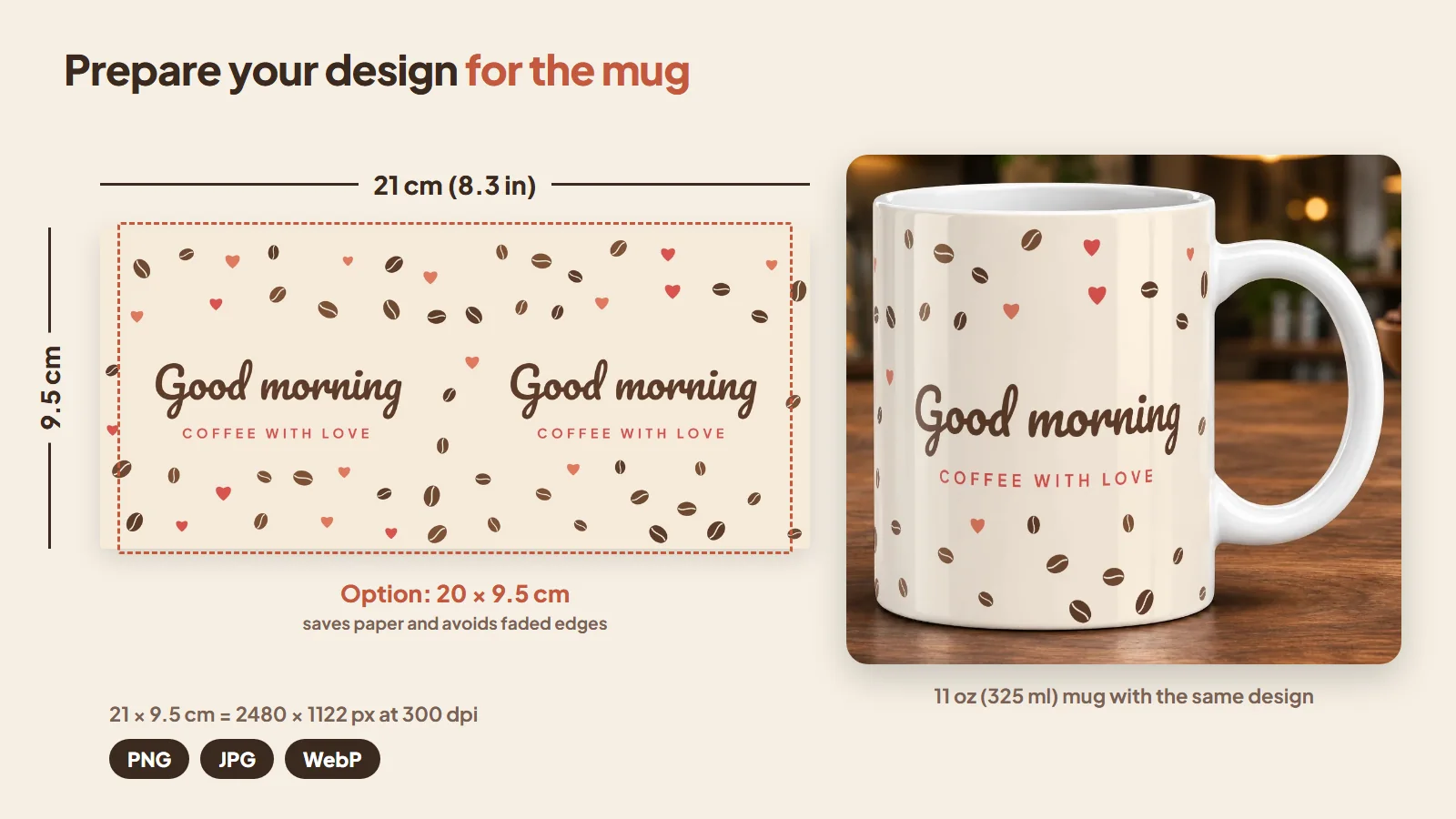
For a standard 11 oz (325 ml) mug, a widely used reference size is 21 × 9.5 cm (about 8.3 × 3.7 in). At 300 dpi, that's roughly 2480 × 1122 pixels.
Keep in mind that the print area varies between manufacturers. Whenever possible, use your supplier's template. To save paper and avoid faded edges (the sides of the mug sometimes don't get hot enough in the press), many sellers use a slightly smaller design, such as 20 × 9.5 cm. Test it on your own mugs and see what fits best (sometimes 20 × 9.7 cm works better, for example).
Three tips to avoid problems:
- Keep names, logos and important text away from the edges.
- Make sure the image has enough resolution for the print size.
- If you need a transparent background, use PNG.
Still unsure about sizes? Read our mug design size guide.
Create your mockup in a few clicks
On In Mockups you upload your design, choose the mug model and the scene, check the preview and download the finished image. If it's your first time, follow the step-by-step guide with screenshots, which shows where to click at each step.
Choose the right scene for each sale
The same design can sell more or less depending on how it's presented. Think about where the image will be used:
- White background: ideal for making the product stand out in listings and online stores.
- Themed scenes: great for Christmas, Mother's Day, Easter and other seasonal collections.
- Scenes with several mugs: a good way to show different designs from the same collection or to sell sets.
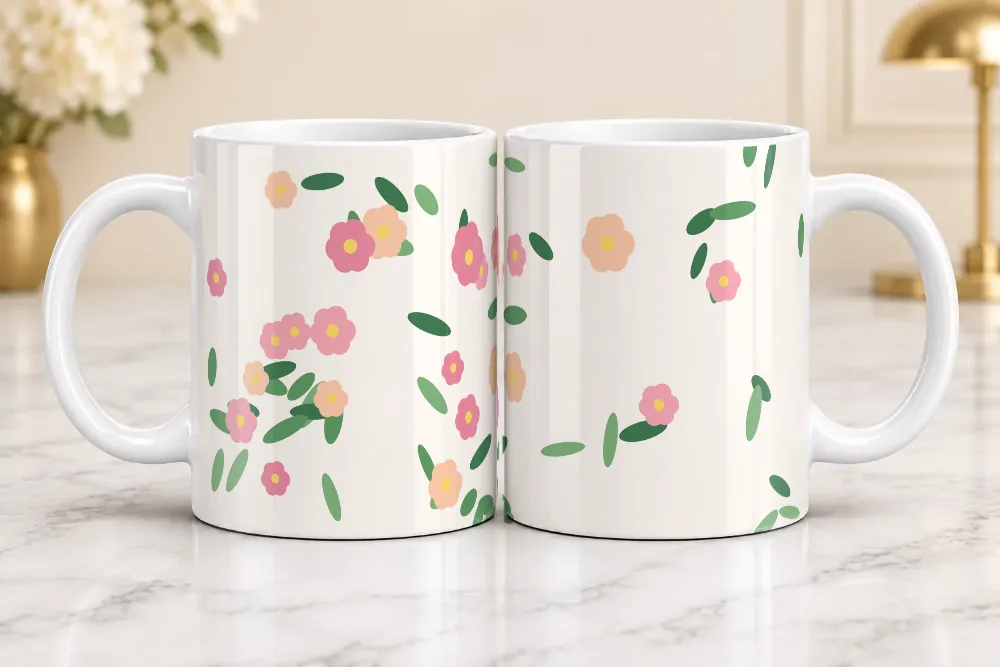
A tip: choose a scene that matches the design, but avoid busy backgrounds. The mug should remain the star of the image.
Check each marketplace's photo rules
Before listing, check the photo rules of the place where you sell. The first photo (the listing's main image) has the strictest rules:
- Amazon: the main image must have a pure white background and show only the product, filling most of the frame (about 85%), with no text, logos or props. Scene mockups go in the additional images.
- eBay: photos can't have added borders or text, and a plain, light background is recommended for the main photo. Lifestyle images work well in the other photos.
- Etsy, Instagram, Facebook and WhatsApp: there's no white-background rule for the first photo. Here you can go all in on creative mockups from the very first image: Christmas scenes, coffee, gifts, a set table. Just keep the mug as the focus.
A good combination: use a white background mockup as the main image on marketplaces that require it, and scenes in the following photos. On In Mockups, white background mockups already come out on pure white, just as these marketplaces ask. Rules change often, so check each marketplace's seller help pages (and your category's rules) before publishing.
Offer colors, but only the ones you have
Showing the same design on mugs with a colored handle and interior gives customers more options and can increase your sales: many people pick their favorite color, match it to their kitchen or buy more than one. On In Mockups you can generate the same design in several mug colors.
Important: before listing, make sure you have that mug color in stock (or that your supplier can deliver it quickly). Listing a color you don't have leads to canceled orders and unhappy customers, and on marketplaces it can hurt your shop's rating.
Check before you publish
Before using the result, check:
- That the design is well positioned.
- That no text or faces are hidden behind the handle.
- That the mug color matches the product you sell.
- That the image shows the correct side of the design.
3 tips for using mockups to make your mugs stand out
1. Make the most of holidays. A Christmas design gets more attention in a Christmas scene.
2. Show the front and back. If the design covers both sides, show both views.
3. Be true to the product. A mockup is a simulation. Let customers know that colors and finish may look slightly different on the physical mug.
Create your mockups for free with In Mockups
Turn your designs into images of personalized mugs without editing each photo by hand. On the free plan you can create up to 5 images a day, with no watermark.
Want to create many images at once? Take a look at the In Mockups plans.