

How to use In Mockups: step by step
Updated on · 3 min read
Creating a mockup on In Mockups takes less than a minute. The steps below follow the same order as the site: upload your design, choose the mockup, check the preview and download. Tap any image to see it full size.
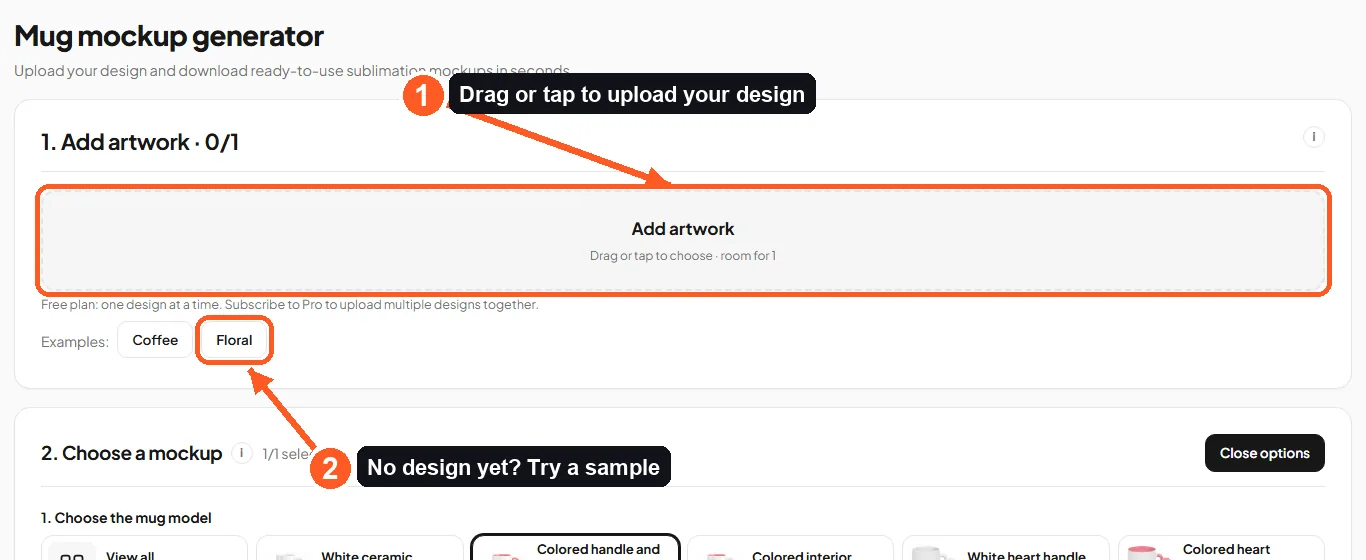
1. Add your design
In the 1. Add artwork box, drag your design file or tap the dashed area to choose an image from your computer or phone. PNG, JPG and WebP all work, at the standard size of 21 × 9.5 cm. To prepare your design at the right size and choose the right scene, read the guide how to make a free mug mockup.
Don't have a design ready yet? Tap Coffee or Floral to try it with a sample.
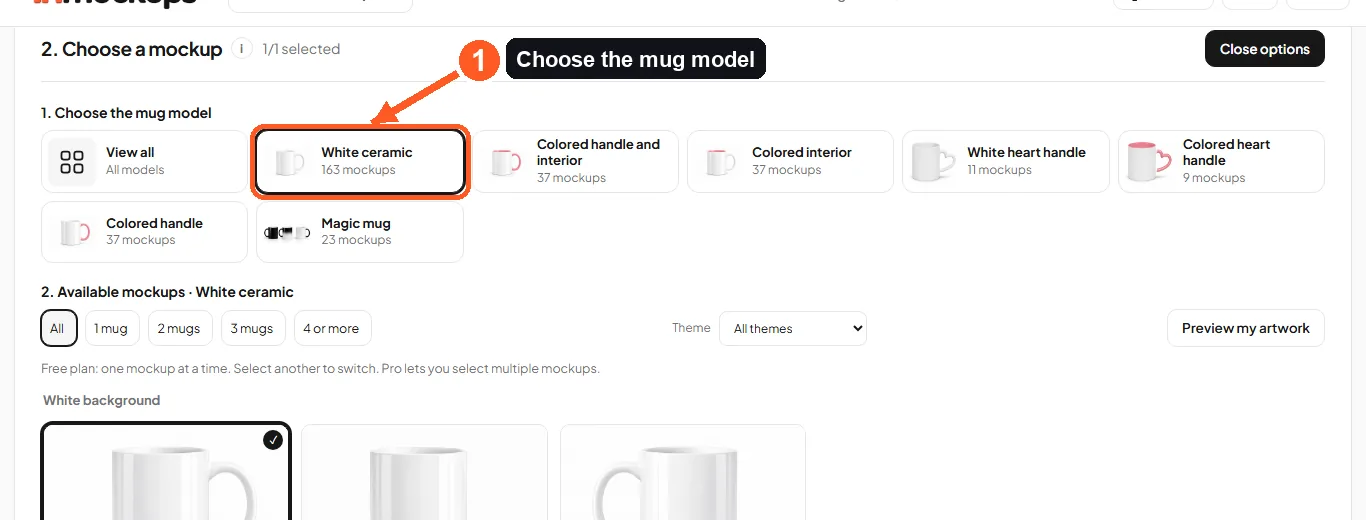
2. Choose the mug model
In the 2. Choose a mockup box, pick the model: white ceramic, colored handle and interior, colored interior, colored handle, heart handle or magic mug. Each model shows how many mockups it has. To see them all together, use View all.
3. Choose the theme and the mockup
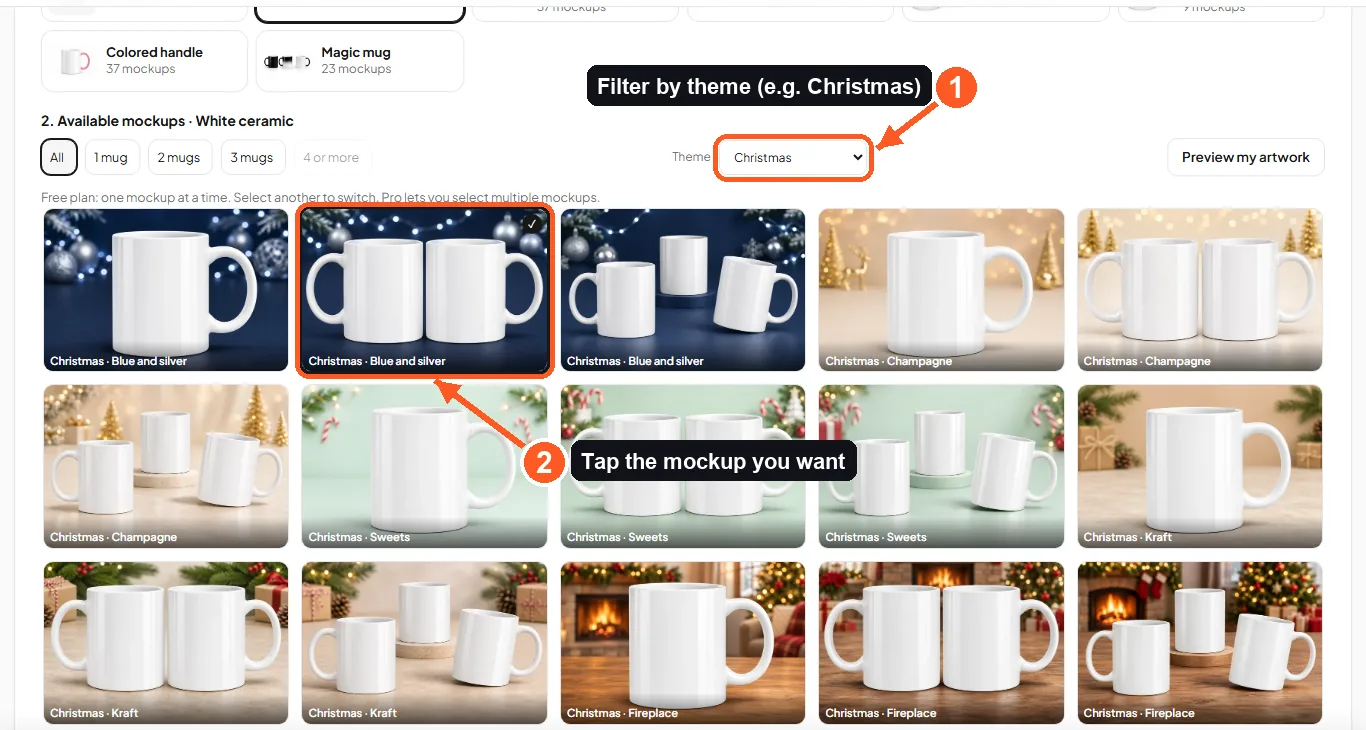
Use the Theme filter to find the right scene (Christmas, Mother's Day, coffee, professions…) and the mug count filter to see scenes with 1, 2, 3 or more mugs. Then tap the mockup you want: it gets a check mark.
Tip: the Preview my artwork button shows every scene with your design already applied.
4. Check the preview and generate
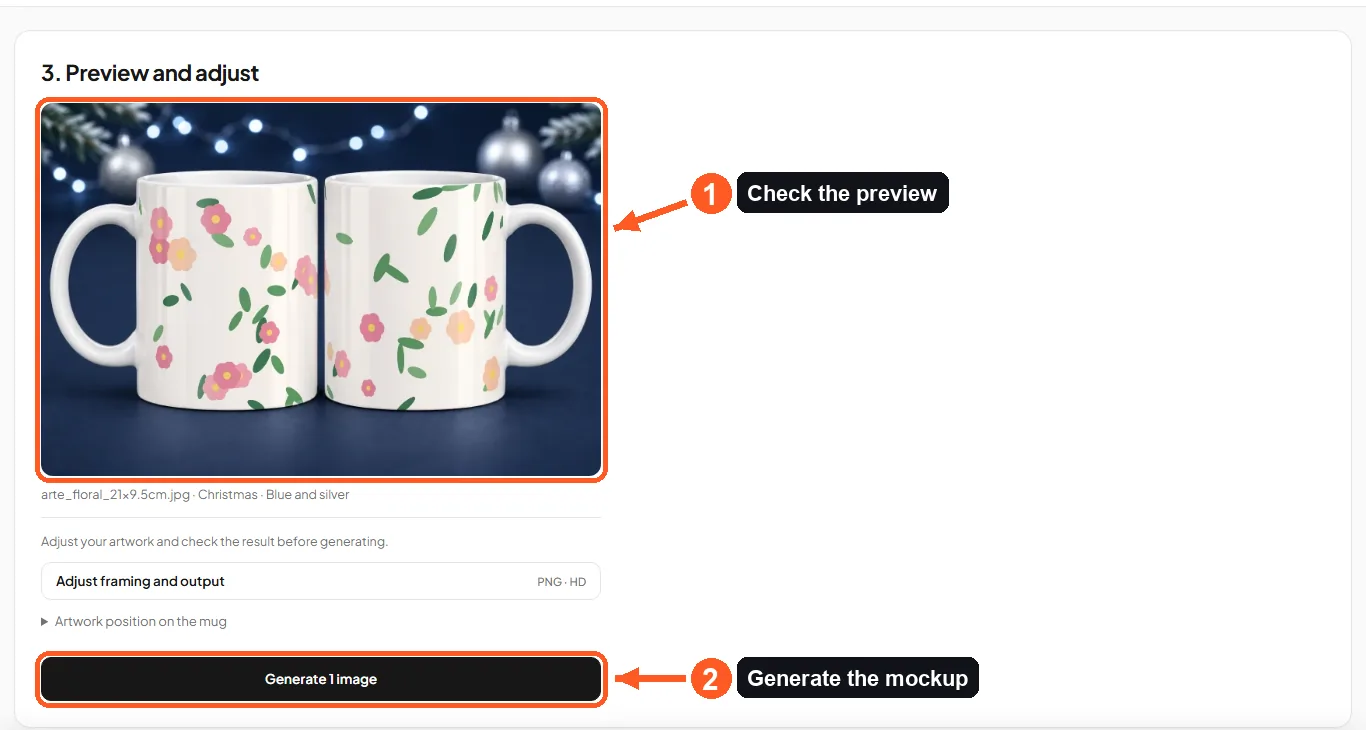
In the 3. Preview and adjust box, see how your design looks on the mug. If needed, adjust the framing or the position of the design. When it looks the way you want, tap Generate.
5. Download or share
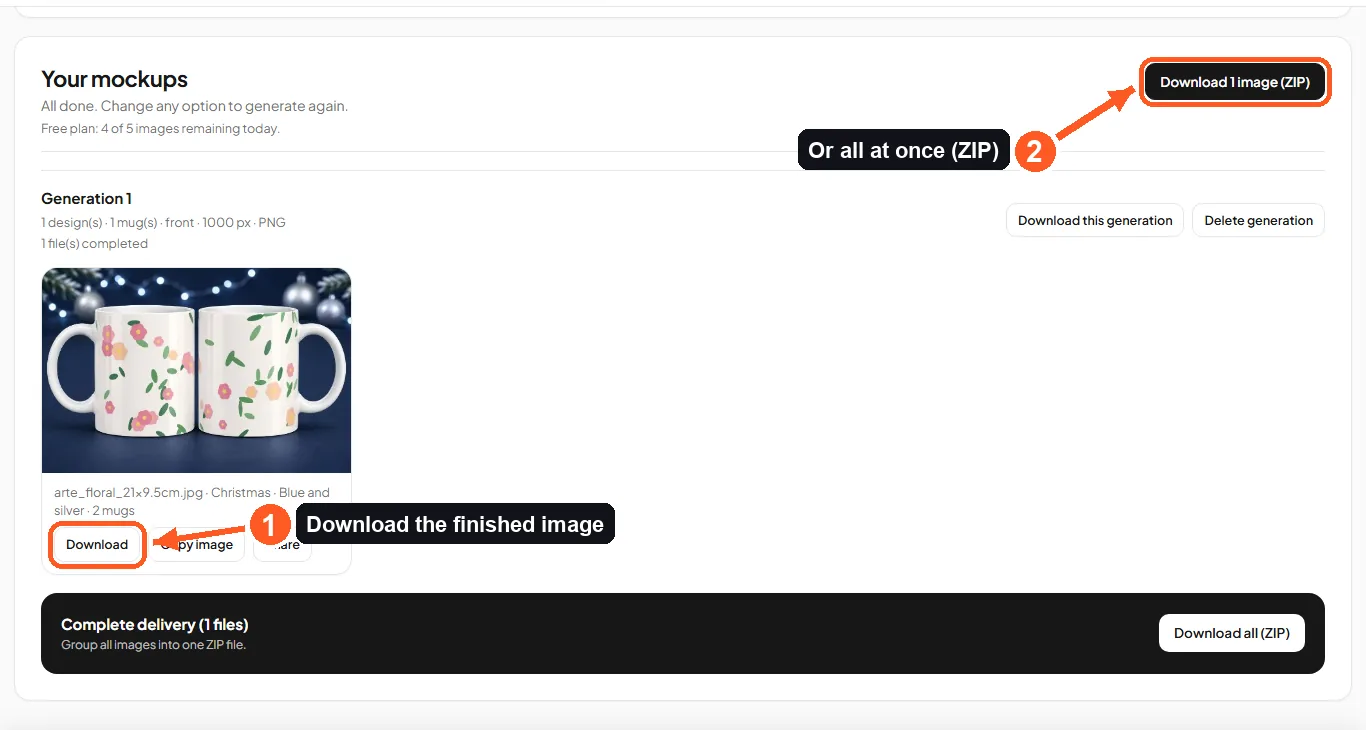
Done! The image appears in Your mockups. Tap Download to save it to your device, or use Copy image and Share to send it straight to WhatsApp. If you generated several images, download them all at once in a ZIP file.
Going further
- Batch mockups: on the Pro plan (R$ 19.90/month) you can upload up to 20 designs and select up to 20 mockups at once, and the site creates every design in every selected mockup in one go. For example, 5 designs in 4 scenes become 20 finished images, which you download together in a ZIP file. It's the fastest way to build the showcase for an entire collection. On the free plan, you upload one design and generate one mockup at a time, up to 5 images a day.
- Batch videos: with Pro, you can also generate a video of the mug spinning for each design, one after another, up to 30 videos per batch.
- Catalog and video: in the Create mockup menu at the top of the site, choose Build catalog or Create video (Pro plan features).
- Still have questions? Check the FAQ or message us on WhatsApp.