

How to build a mug catalog on In Mockups
Updated on · 3 min read
The catalog puts several designs on the same mug, in ready-made pages to send on WhatsApp, post on Instagram or print. Each page has the collection name, the numbered designs and a footer with the price and your contact, so customers can pick and order by number. It's a Pro plan feature. The steps below show the full path; tap an image to see it full size.
1. Open the catalog
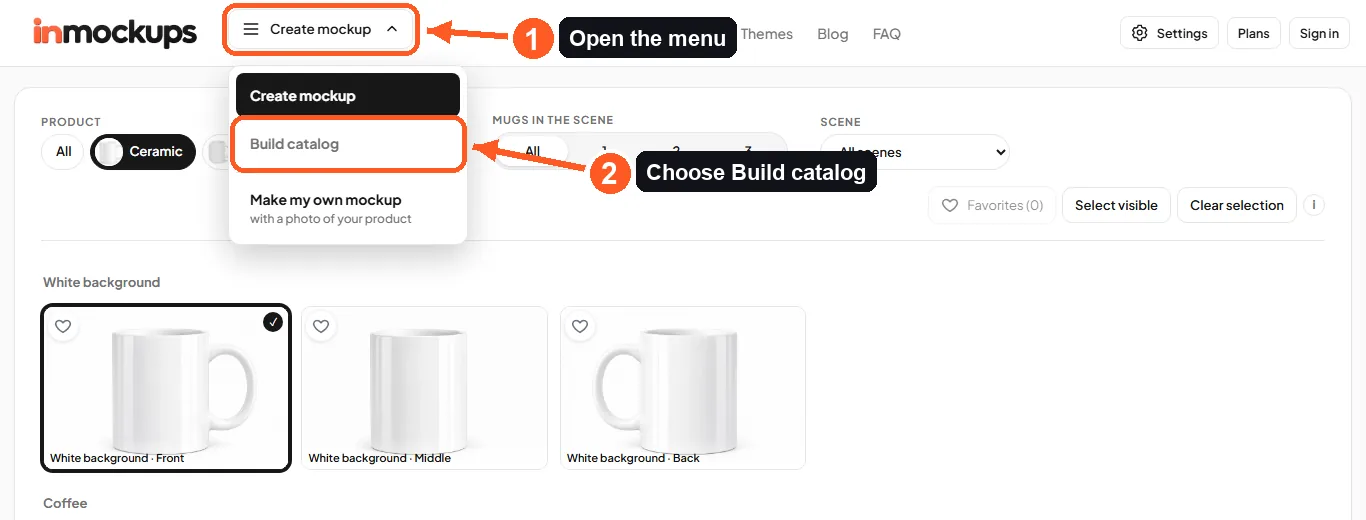
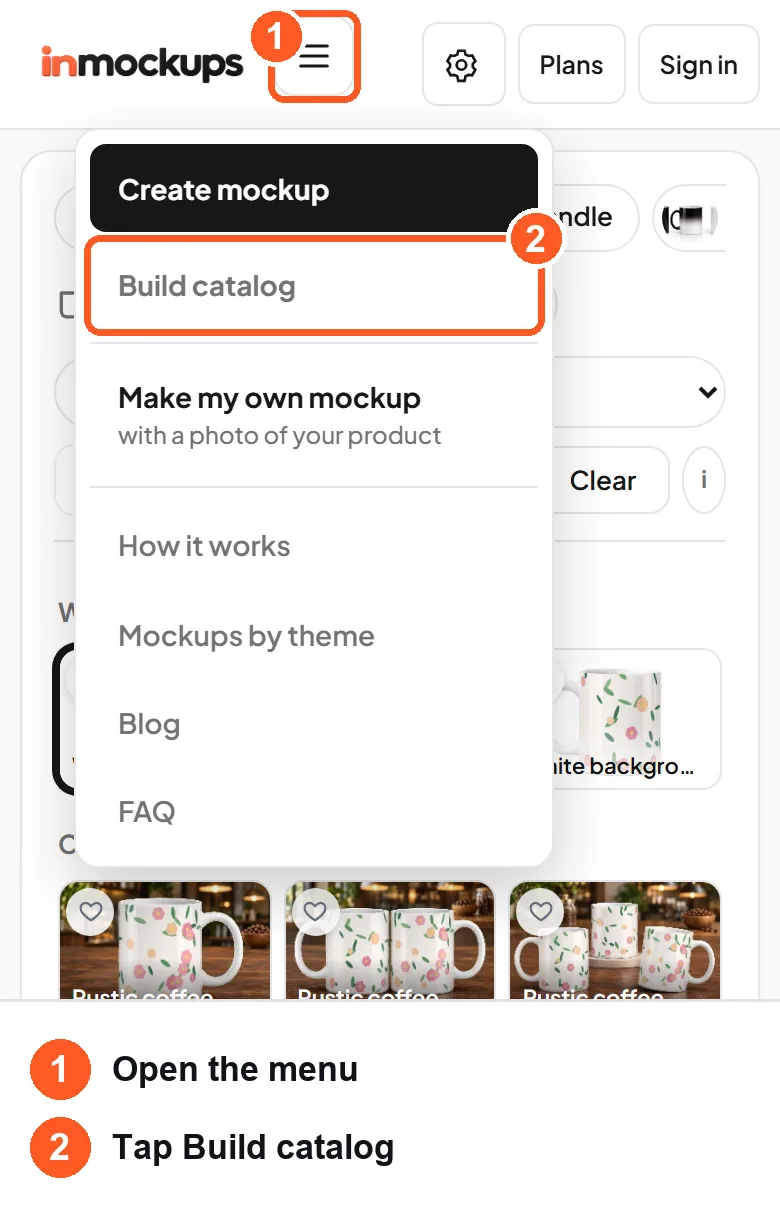
In the Create mockup menu at the top of the site, choose Build catalog. On a phone, the menu is the ☰ button.
2. Upload your designs
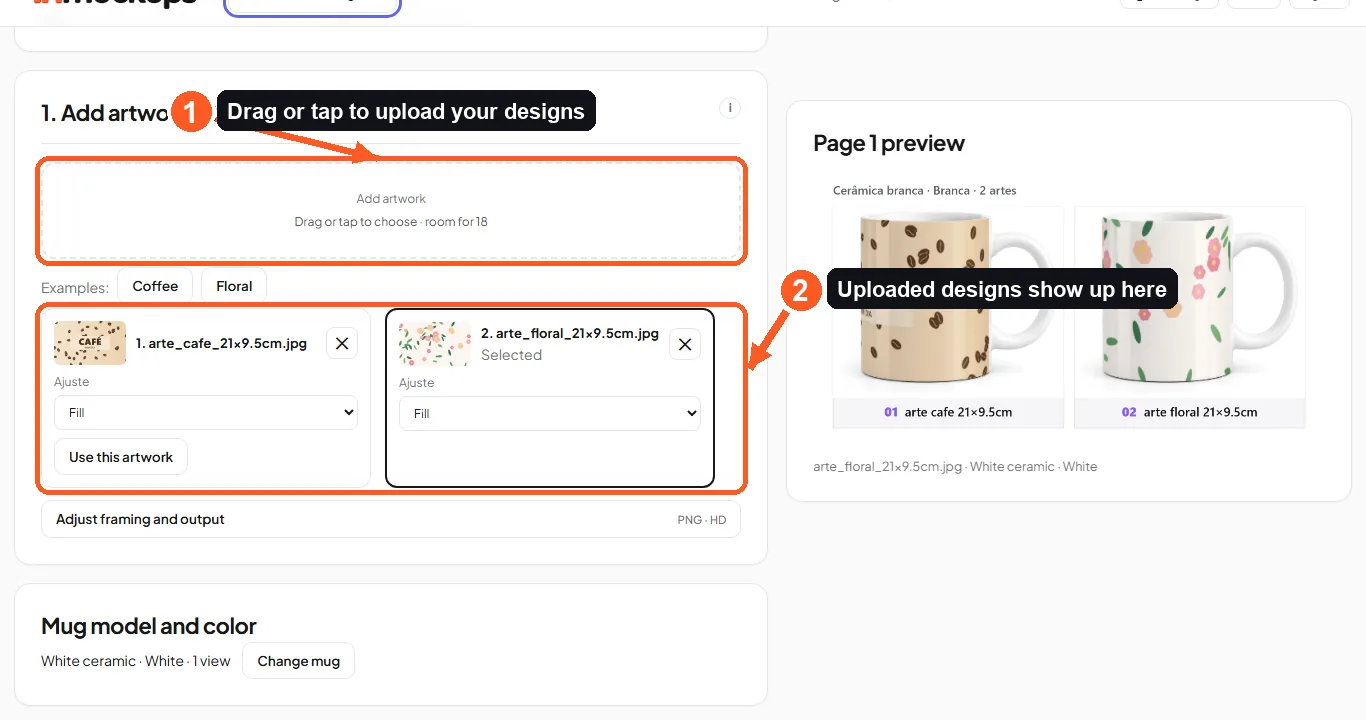
The designs are the same as on the mockups screen: the ones you already chose show up here, and new ones added here also show up there. In the Add artwork box, drag your files or tap the dashed area to choose them. You can upload up to 20 designs at once, in PNG, JPG or WebP.
3. Name the collection
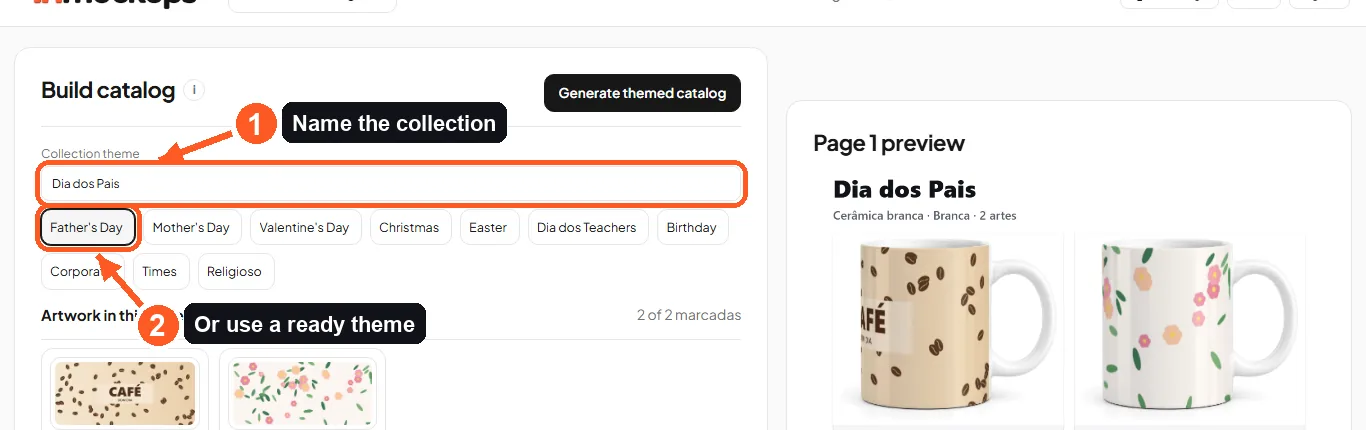
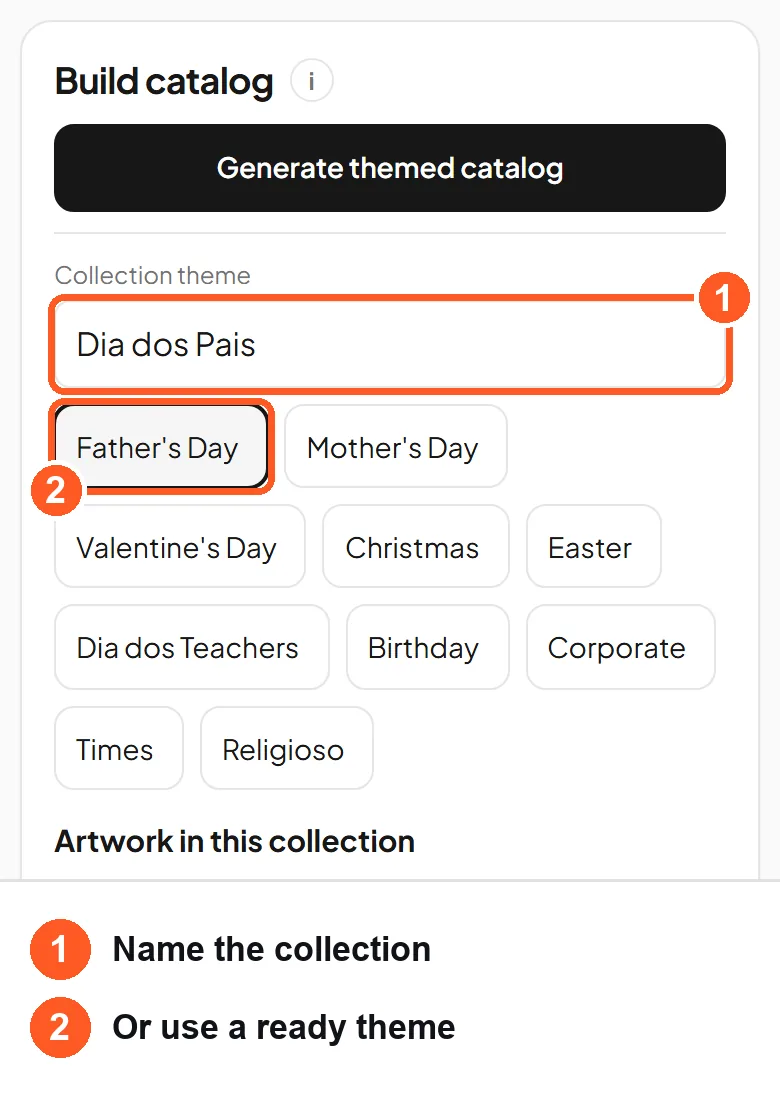
In Collection theme, type the name shown at the top of every page, such as "Father's Day 2027". To go faster, tap one of the ready themes (Father's Day, Mother's Day, Christmas, Easter…).
4. Choose the designs in the collection
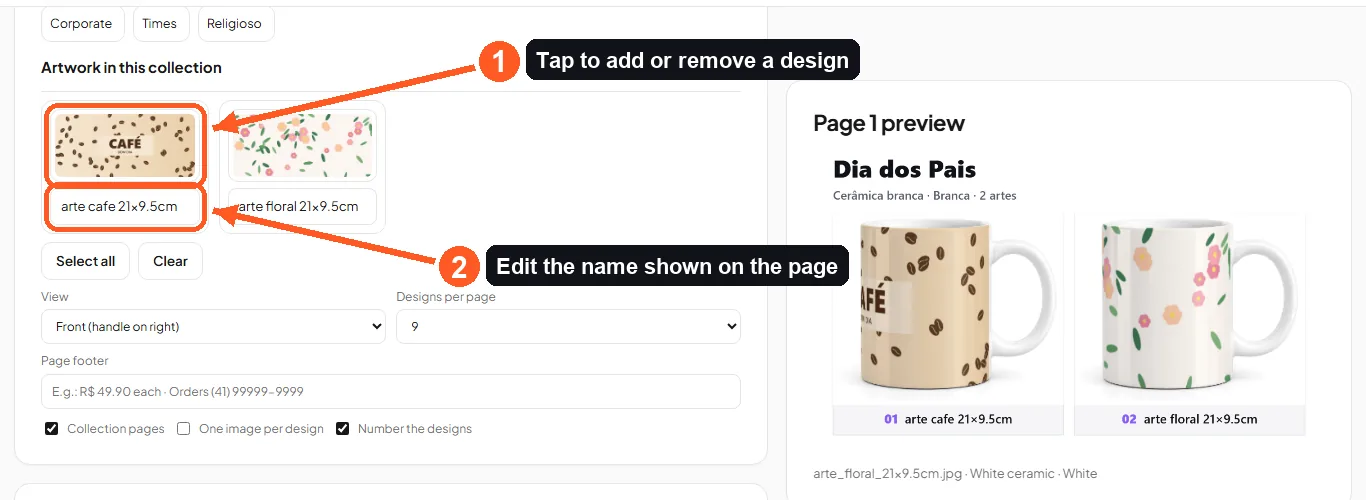
In Artwork in this collection, tap a design to remove it from the catalog or put it back. Below each design is the name shown on the page: replace the file name with the name of the print, such as "Hero dad" or "Coffee with love". Select all and Clear help when there are many designs.
5. Set up the page
- View: the side of the mug that shows (front, middle or back).
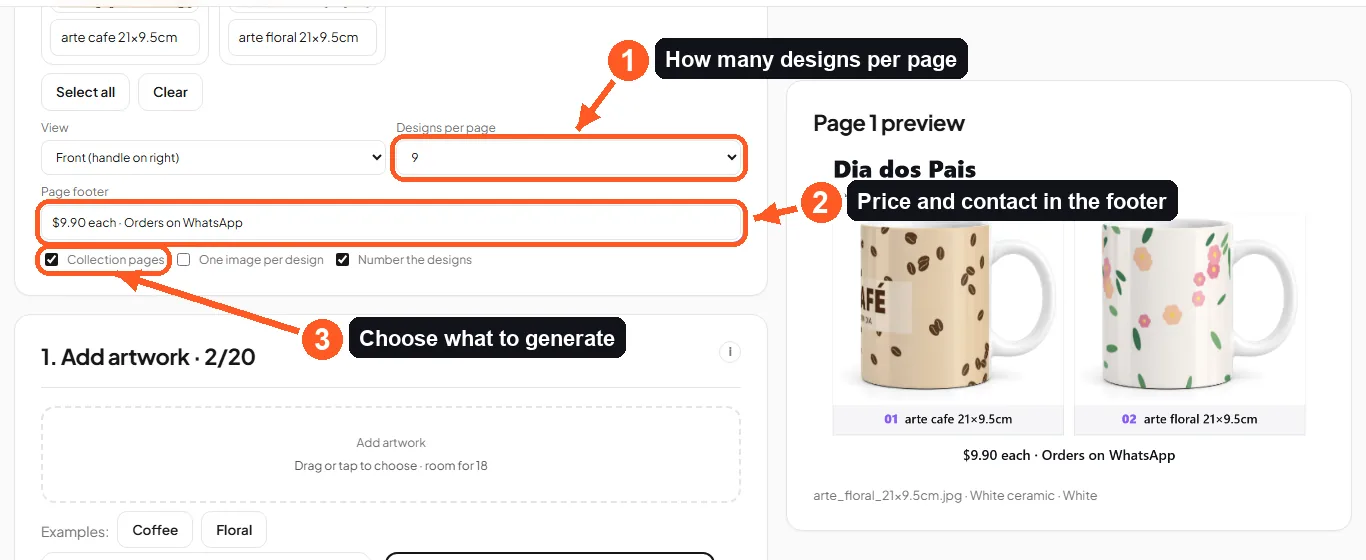
- Designs per page: from 4 to 16. With more designs, the catalog gets more pages.
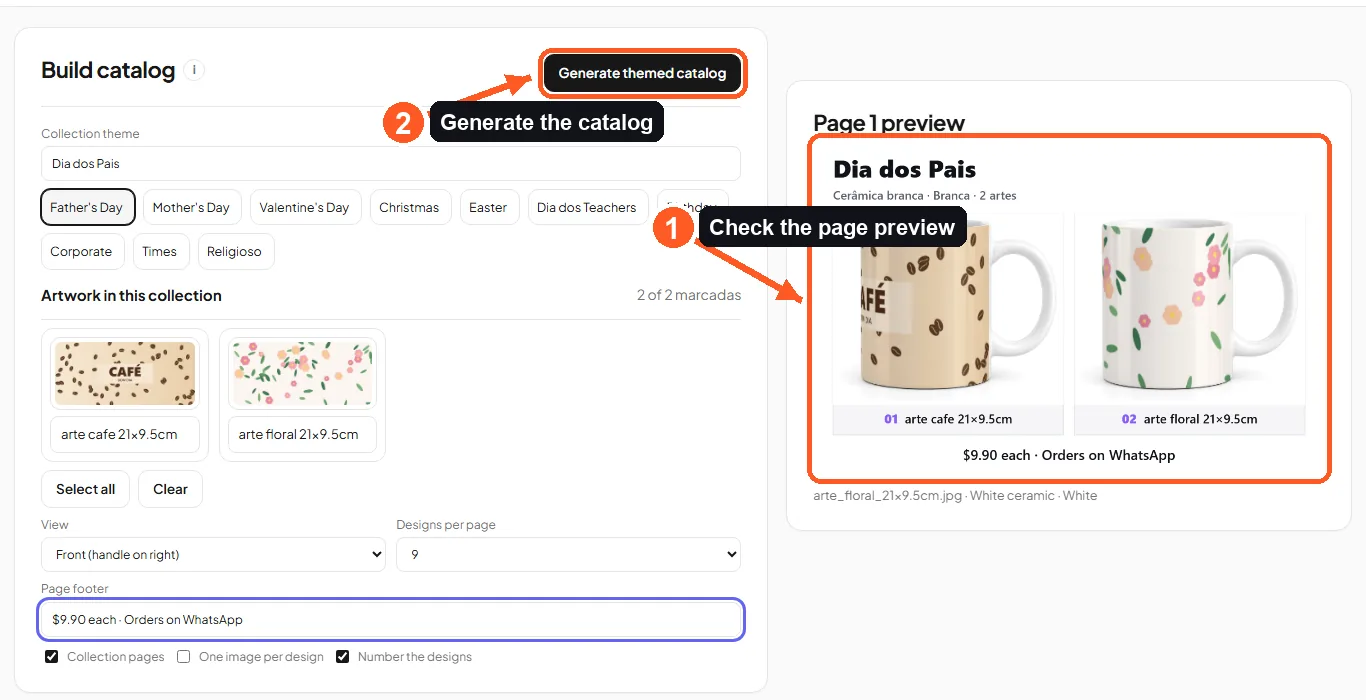
- Page footer: the price and contact, such as "$9.90 each · Orders on WhatsApp".
- Collection pages generates the catalog pages; One image per design also generates a separate image of each design; Number the designs adds each design's number, so customers can order by number.
6. Choose the mug and, if you want, the watermark
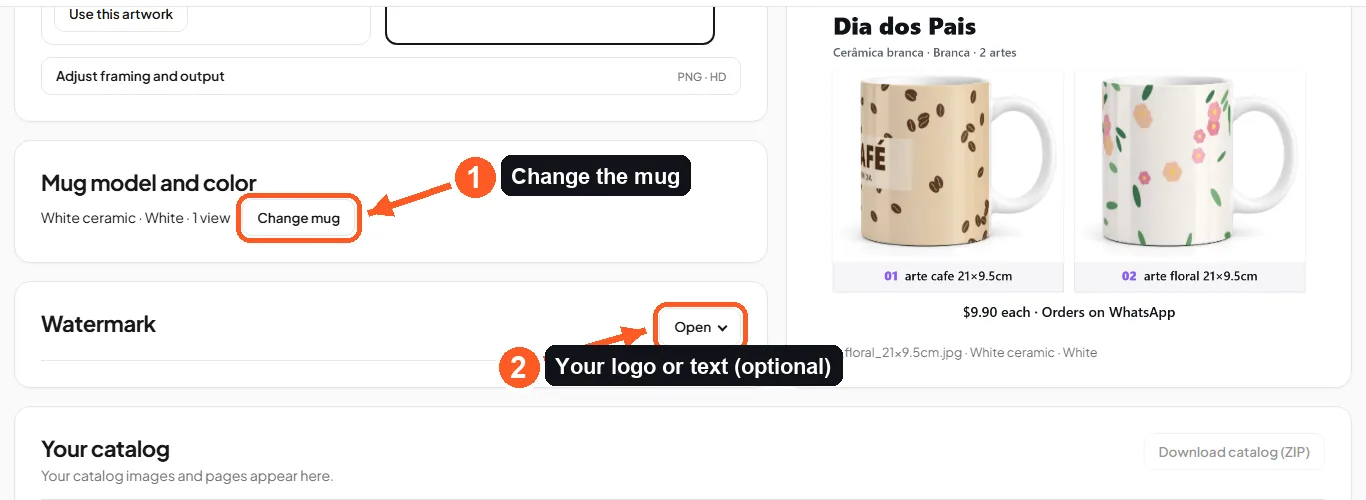
In Mug model and color, tap Change mug to pick another model. In Watermark, tap Open to add your logo or a text, such as your shop's @, to every image.
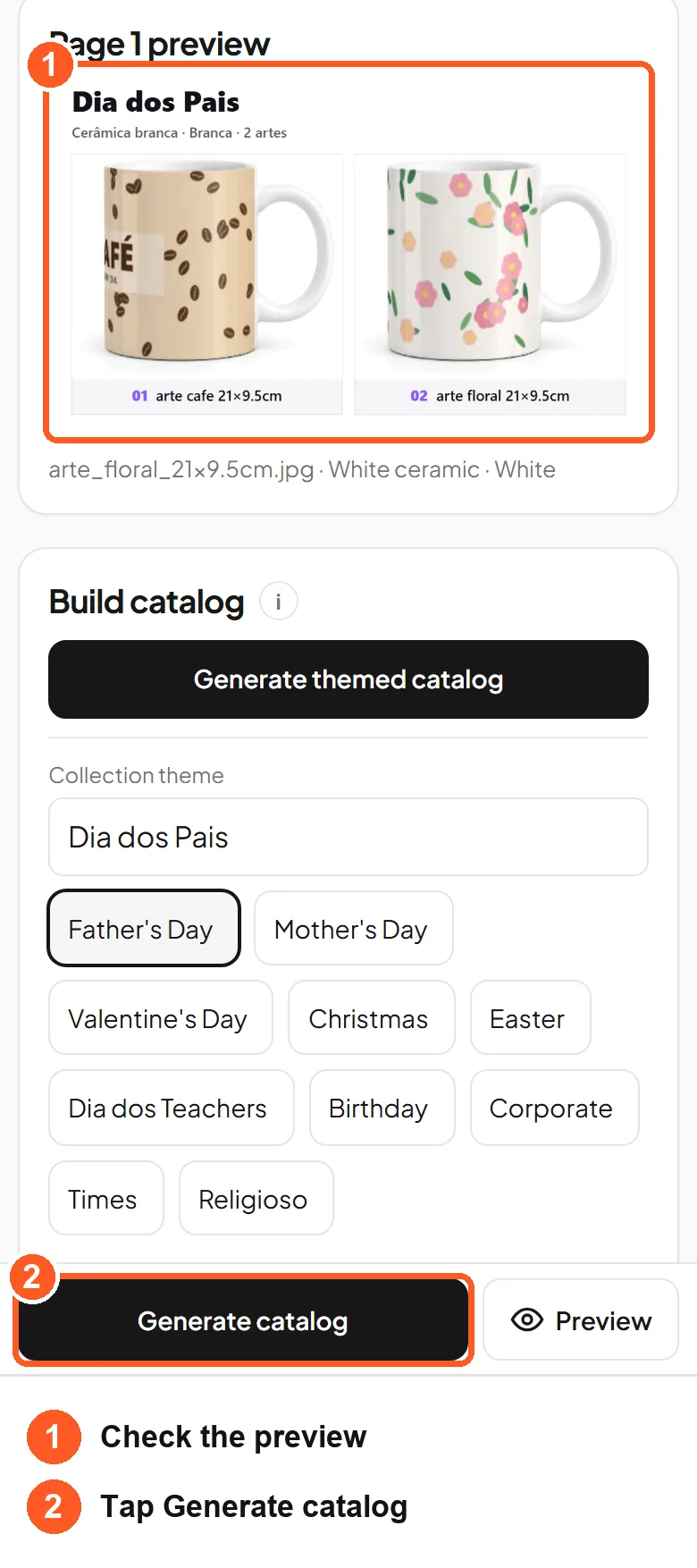
7. Check the preview and generate
Next to it, the preview shows the first page as it will look, with the title, the designs and the footer. When it looks the way you want, tap Generate themed catalog. On a phone, the Preview button in the bottom bar takes you to the preview, and Generate catalog is right next to it.
8. Download the catalog
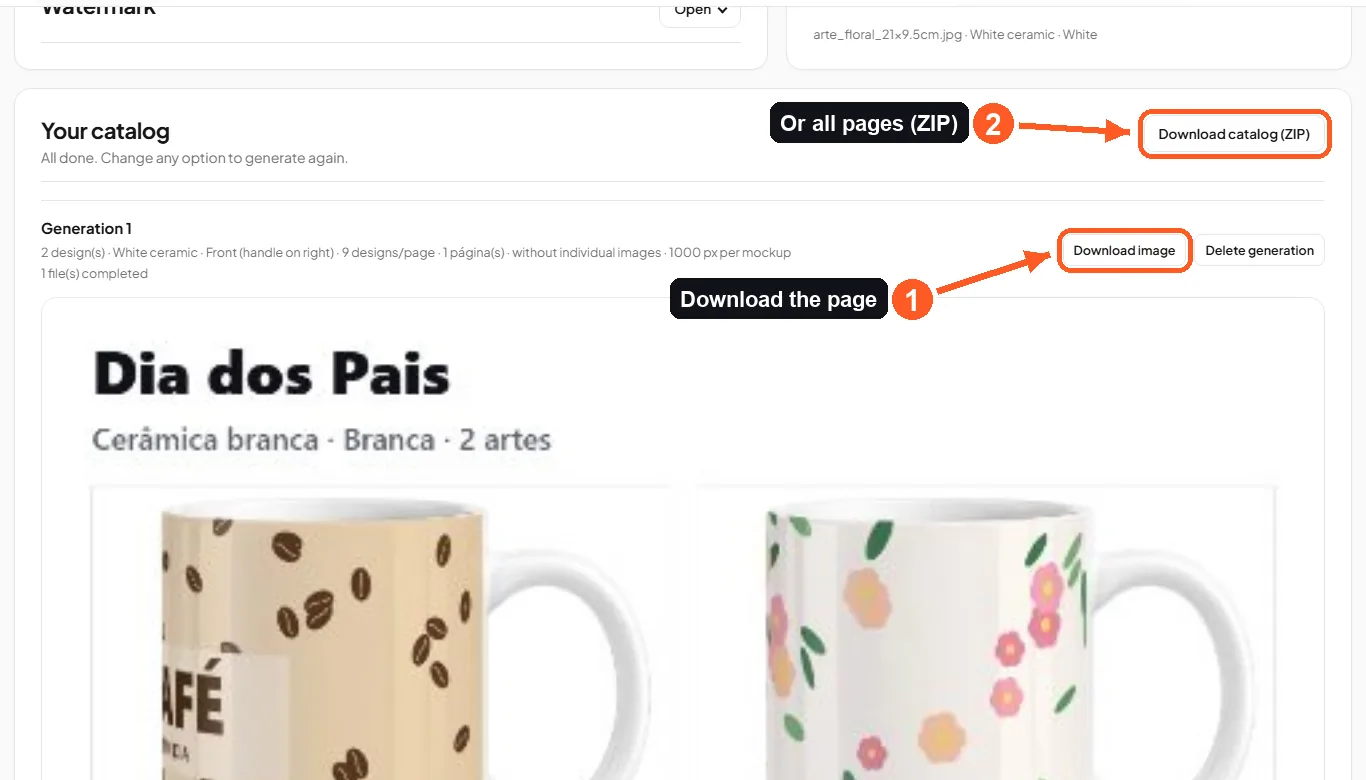
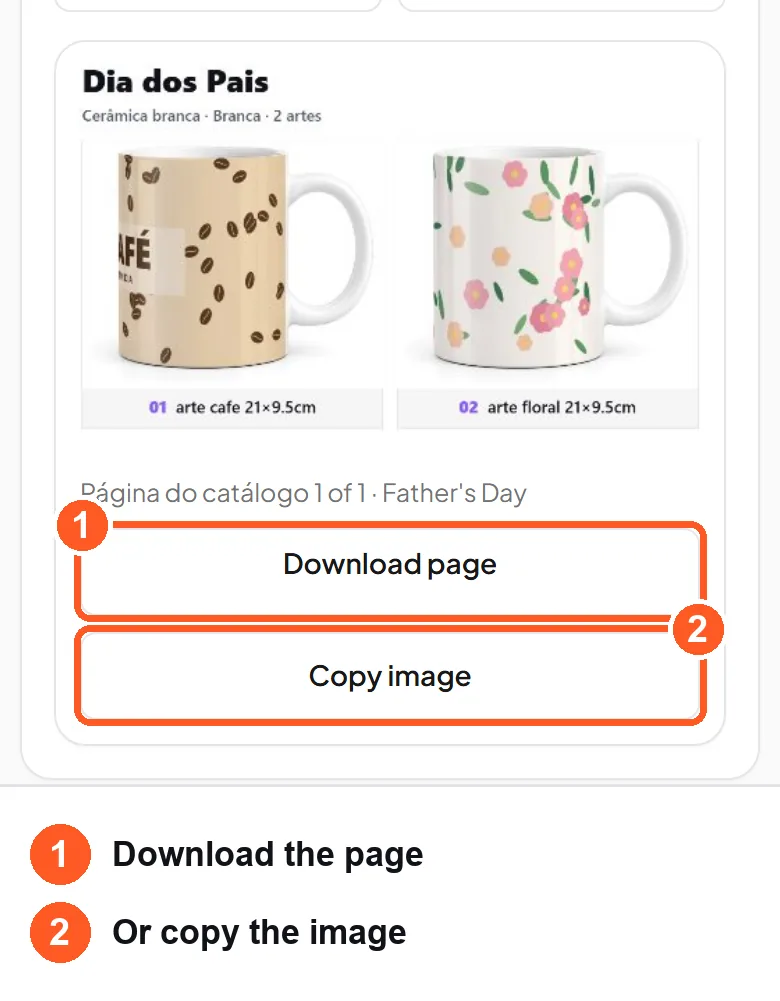
The pages appear in Your catalog. Download each page, or all of them at once with Download catalog (ZIP). Below each page there is also Copy image, to paste it straight into a chat.
See also
- How to use In Mockups: the step-by-step guide for mug mockups.
- How to make your own mockup: a mockup with a photo of a T-shirt, frame or another product.
- FAQ, or message us on WhatsApp.